
01
Does dispatch have a current update?
Check the latest vehicle report
Review location, status and the last-update time. An offline vehicle needs a reporting or connectivity check before you assume it has stopped.
A vehicle is late to the depot. A long stop needs explaining. Dispatch needs an update. Bring reported locations, trip records and available vehicle data into one fleet view, so your team can check what happened before deciding what to do.
Start with the questions dispatch and fleet managers handle every day. Check the latest report, review the journey and bring the relevant records into the conversation.
Does dispatch have a current update?
Review location, status and the last-update time. An offline vehicle needs a reporting or connectivity check before you assume it has stopped.
Where did the trip take longer?
Compare recorded movement and stopped time with the planned run. Check loading, unloading and scheduled breaks with the people involved.
What changed this week?
Compare distance, running time and idle time over the same operating period. Check assignments and depot waiting time before drawing a conclusion.

From the depot to the next delivery.
Find the vehicle, journey and sensor records your team needs to investigate a problem.
Find the vehicle and check its latest reported position and status before answering a dispatch question.
Explore the solutionReview trip records and stopped-time context when a run takes longer than planned.
Explore the solutionReview idle time and supported fuel readings. Confirm the reading source and calibration for your vehicles.
Explore the solutionReview supported speeding, braking and acceleration events alongside the journey before a driver conversation.
Explore the solutionRoute playback
See where the vehicle stopped and when it moved again. Bring the relevant interval to dispatch instead of relying on a summary alone.
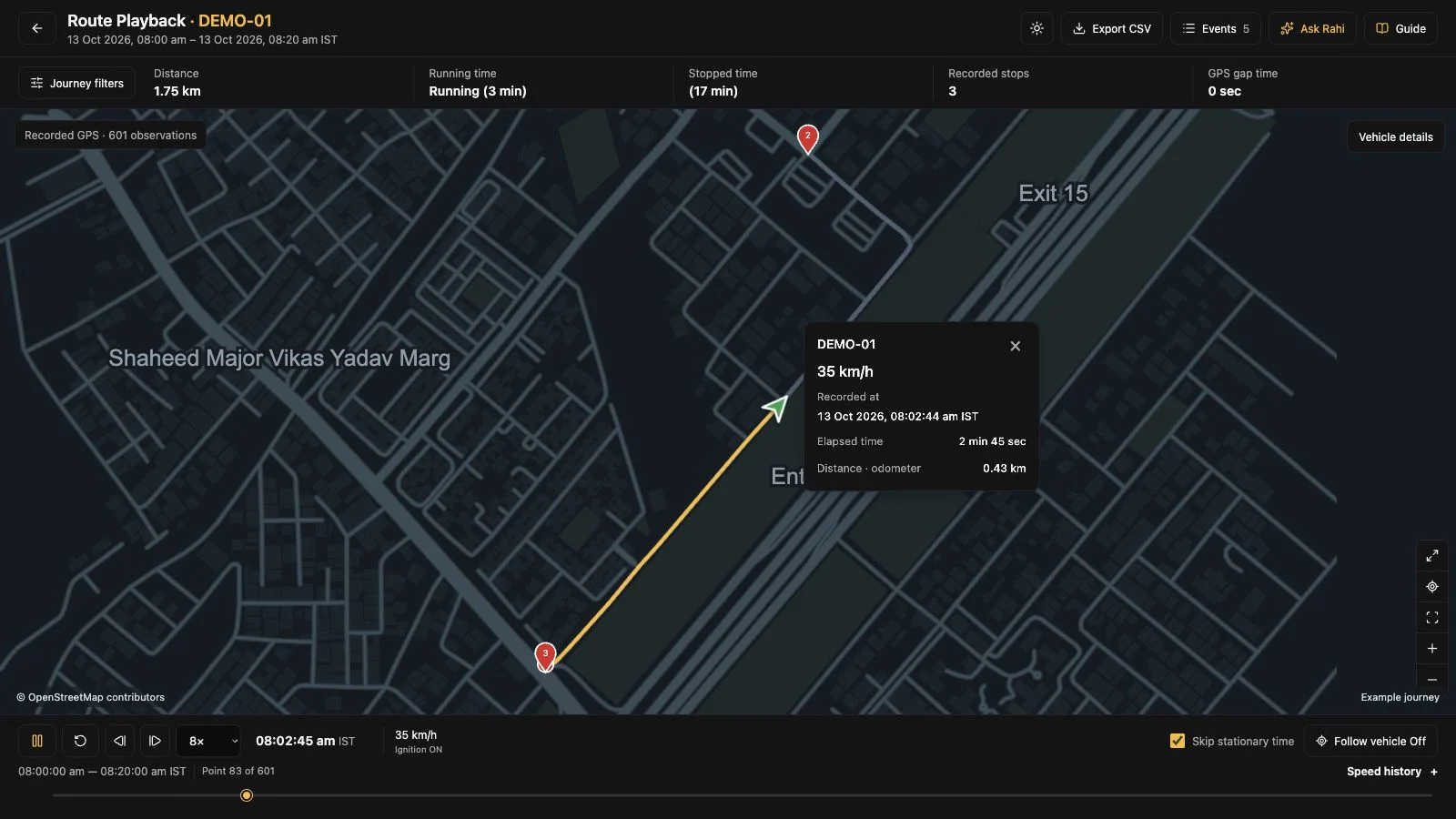
Open a recorded journey for the vehicle and hours you want to review.
The depot wants an update. Start with the journey, find the wait and give the people involved something specific to check.
“The truck should have reached the depot by now.”
Select the vehicle and the trip period. Replay its recorded route to see where it travelled and when.
See route playback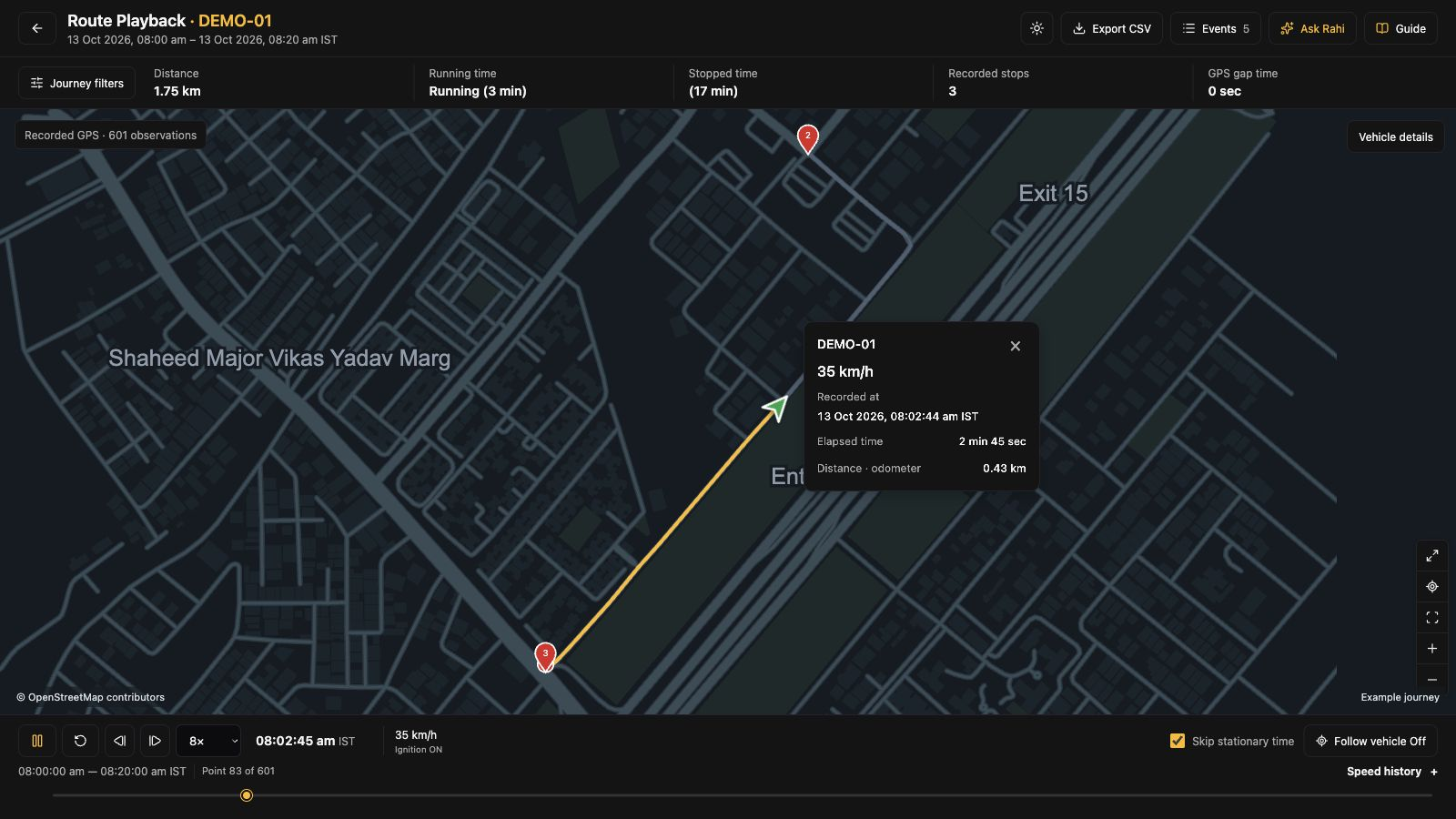
Dispatch can compare this part of the journey with the planned arrival.
“Where did we lose the time?”
Choose a recorded stop to see its arrival, departure and duration. Use that interval to check loading queues, breaks or a wait at the depot.
Review journeys and stops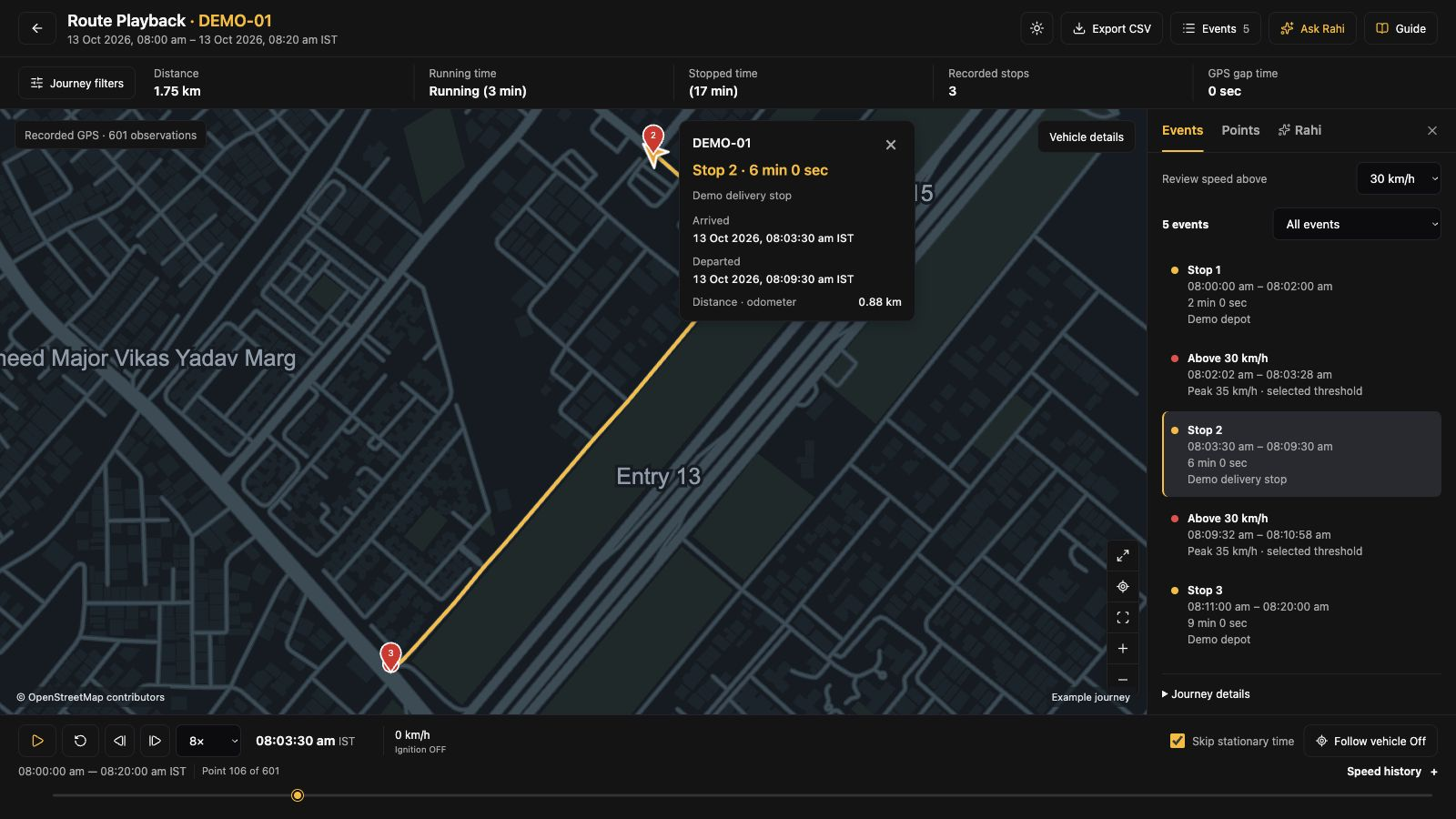
Ask the driver or receiving depot what was happening during that stop.
“Is this happening on other runs too?”
Compare running, idling and engine-off time over the same period. Keep missing history separate when reviewing the vehicle group.
Review time and usage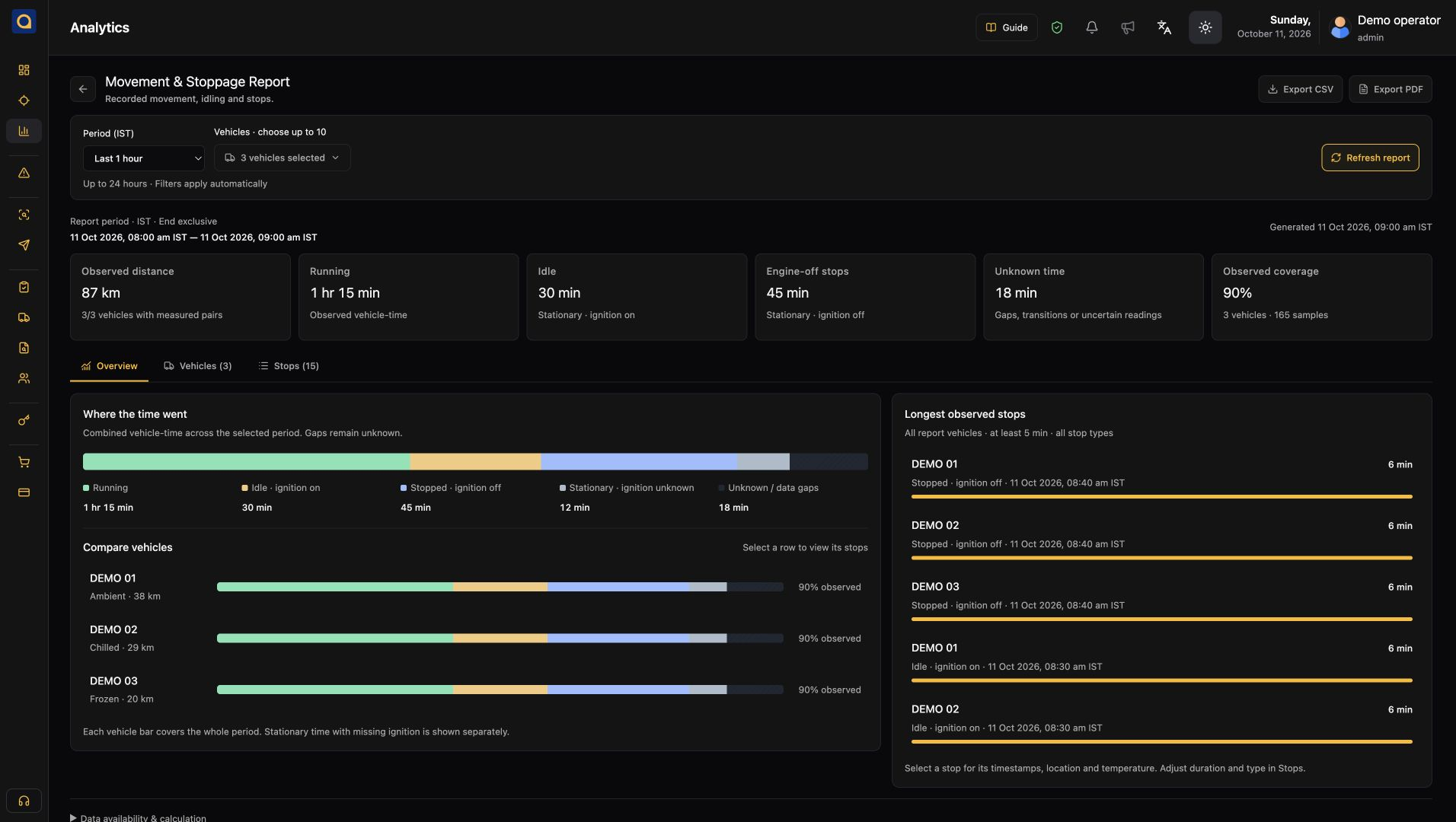
The fleet manager can check repeated waiting against assignments and depot schedules.
“What should we discuss with the driver?”
Select a speed review event and see the journey position at that time. The threshold is a review setting; the road and trip conditions still need checking.
Review driving events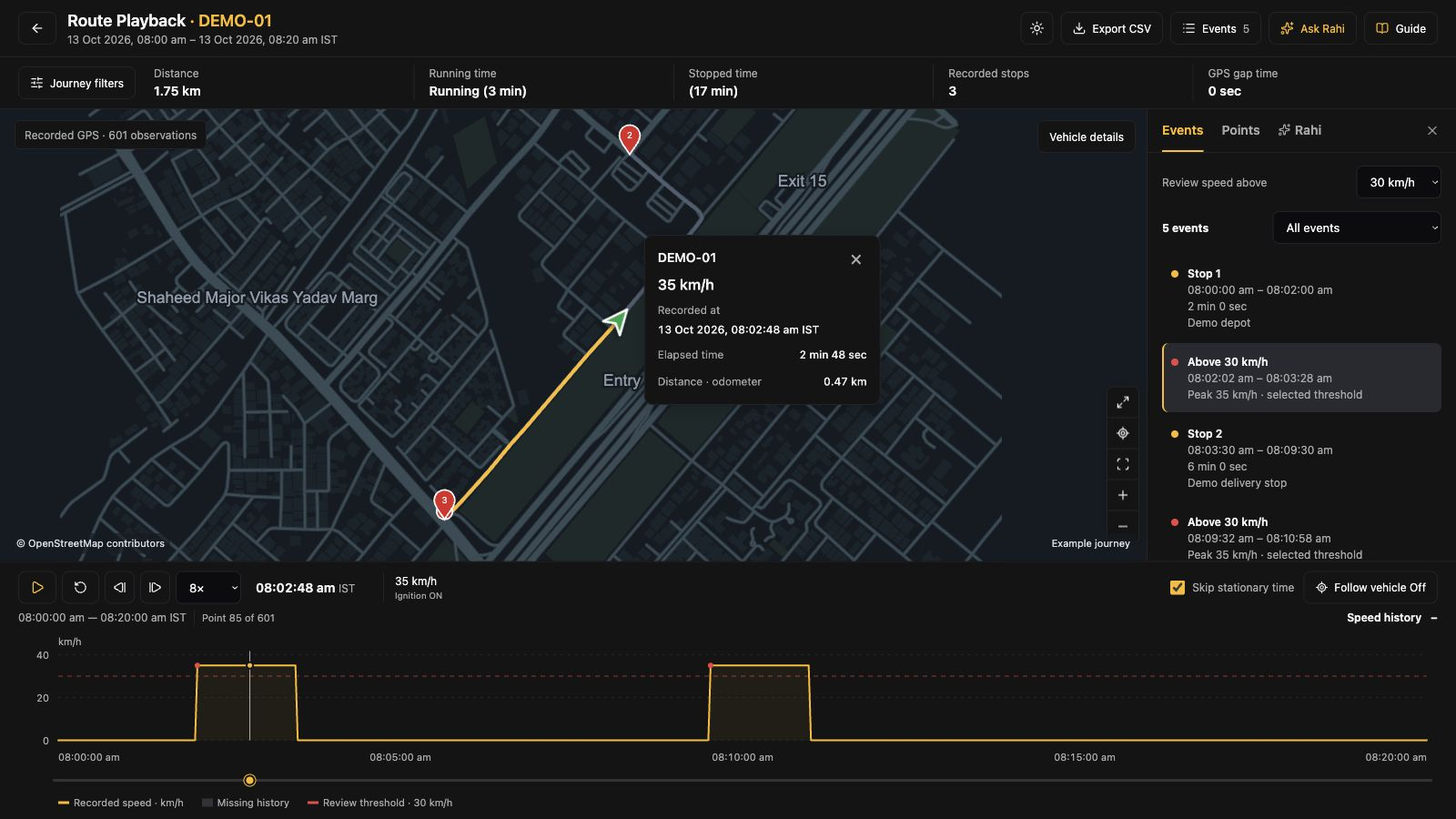
Review the circumstances with the driver, then agree a follow-up.
The working day
Dispatch, the driver and the depot each see a different part of the day. Use the same trip records when they need to talk.
 01 / Before dispatch
Check the vehicle's latest report before assigning it. Confirm the loading plan and expected arrival with the depot.
 02 / During the run
Open the stop interval, then speak to the driver or receiving team. The record tells you when; the people explain why.
 03 / At the daily review
Compare the run with the depot plan. Agree which wait, assignment or vehicle issue the team should follow up.
Use the software to investigate these priorities, then measure progress with your own fleet records. Results depend on your operation, data coverage and the actions your team takes.
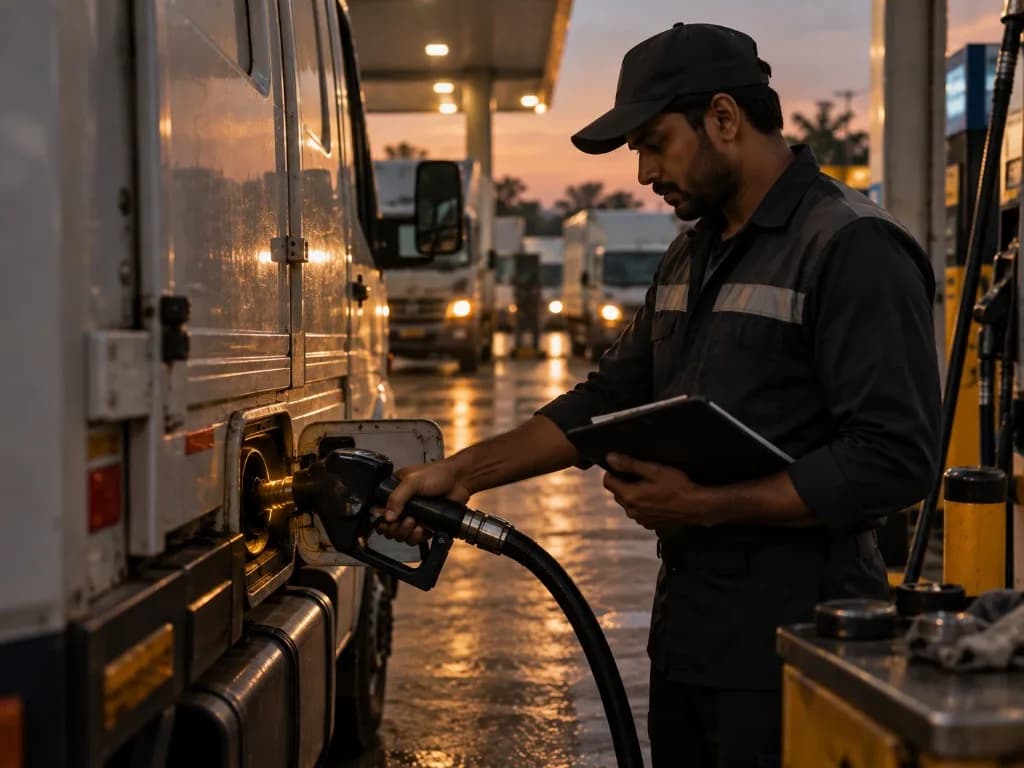
Check idle periods and supported fuel readings against the trip and depot activity. Identify where a closer review is needed.
Review: idle duration and validated fuel records
Explore the workflow
Compare running time and distance across like-for-like periods. Check whether vehicle assignments explain underused capacity.
Review: running time, distance and assignments
Explore the workflow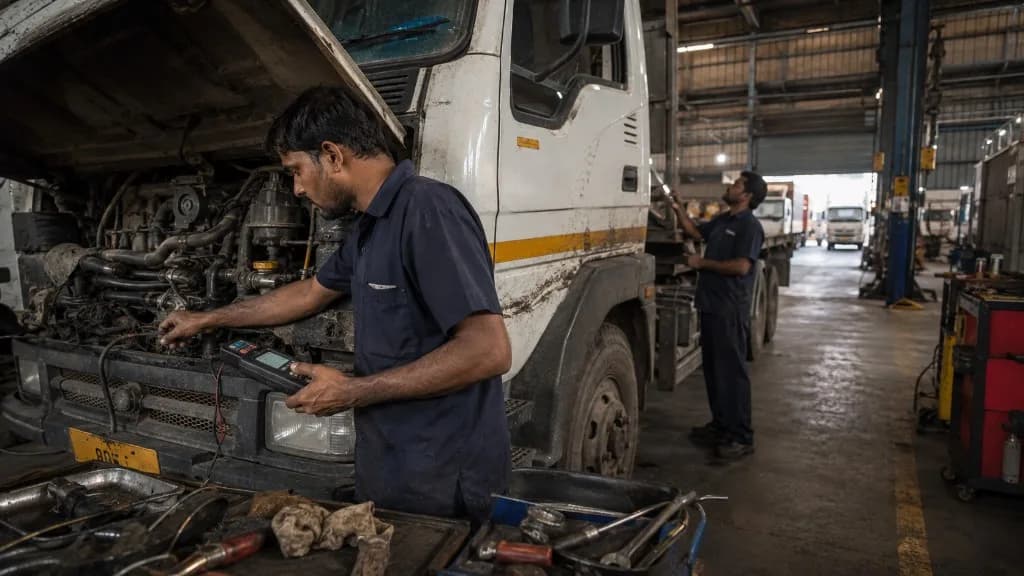
Bring available vehicle records and diagnostic readings into the maintenance conversation. Confirm which fields each vehicle supports.
Review: inspection follow-ups and available readings
Explore the workflow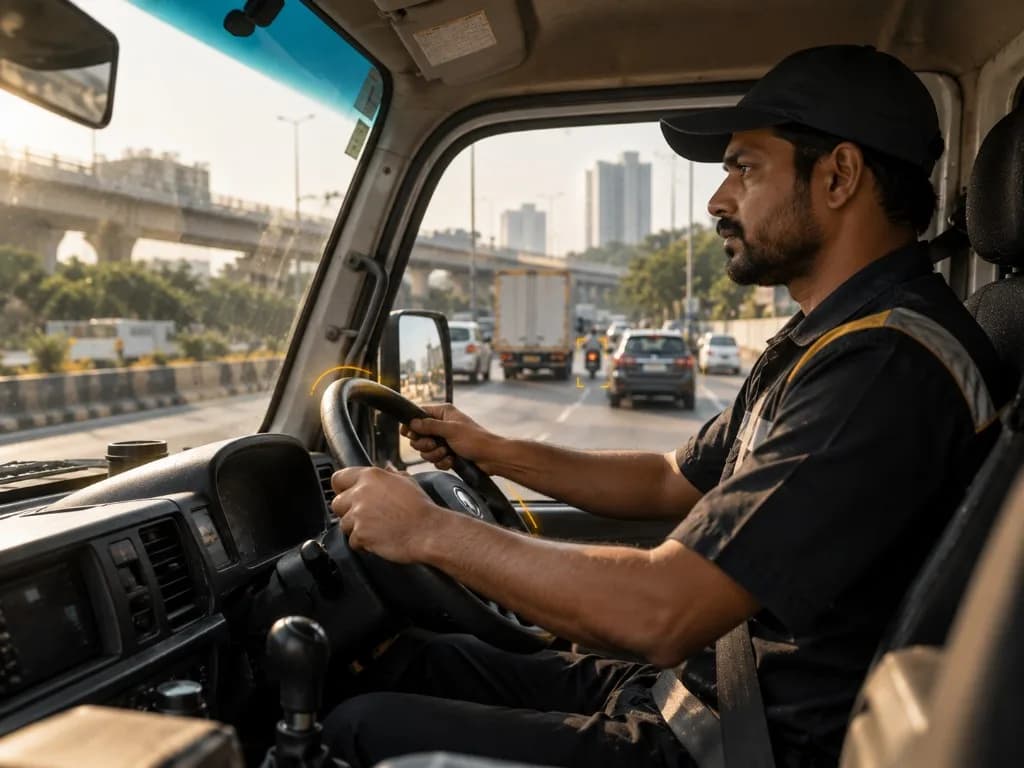
Discuss supported driving events alongside trip conditions and the driver’s explanation. Use recurring patterns to guide a coaching conversation.
Review: supported events and driver follow-ups
Explore the workflowStart with the vehicle types, depot operations and records your transport team needs. Check the connection and reporting scope before agreeing a rollout.
Explore devices & compatibilityList depots, vehicle groups, typical runs and the dispatch or maintenance questions you need to investigate.
Review ST100, ST200 or compatible third-party trackers. Confirm vehicle fit, connectivity, update intervals and required readings.
Walk through the fleet view, recorded trips and reports using your own requirements. Agree installation, training, support and evaluation criteria.
See SafarTrak at work
Show us your vehicle types, tracker models and a question from the working day. We’ll walk through the relevant fleet screens with you.
Talk to the SafarTrak team