Explore how SafarTrak connects an everyday operational question with a practical software workflow.
Fleet overview
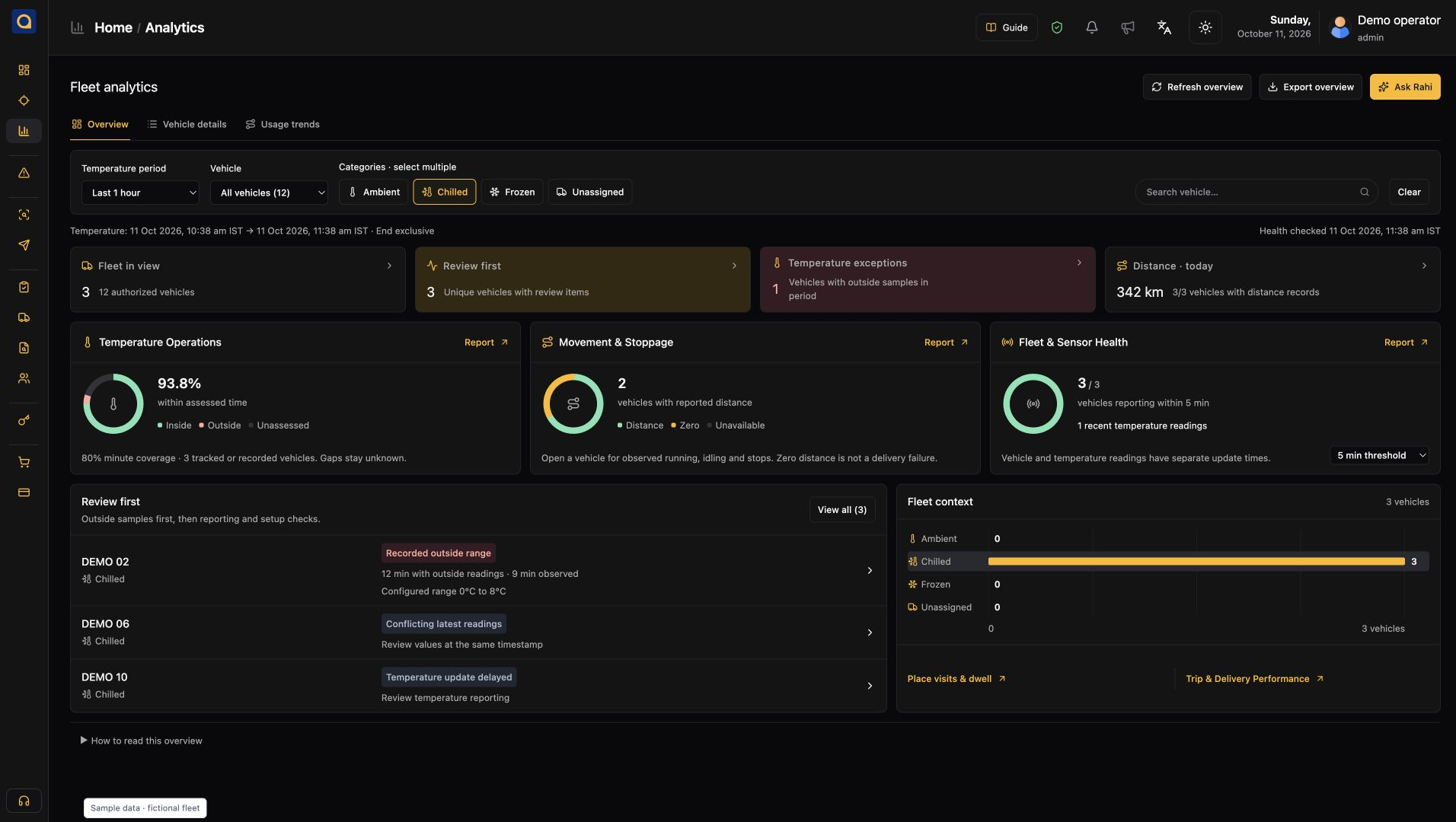
Review fleet activity and the vehicles that need a closer look.
Fleet visibility01
A vehicle appears offline. Check the last report.
Find the vehicle and check its last reported position, status and update time. An offline label may mean a connection problem; check the timestamp before assuming the vehicle has stopped.
What your team can do next
Open the vehicle context and check its latest reported activity before following up.
What the review gives you
A shared picture of fleet activity, with a path into individual vehicle context.
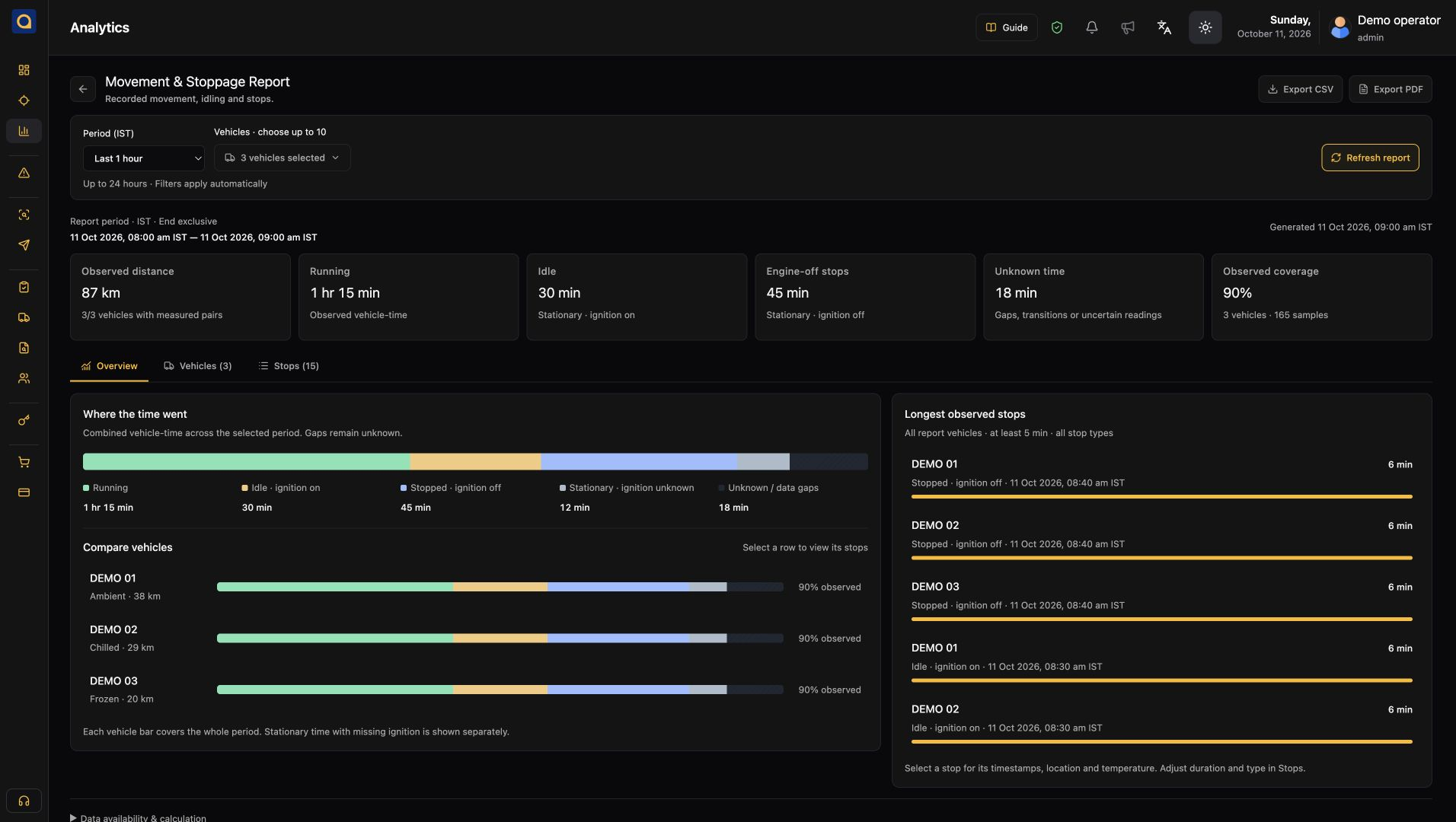
Review running time and idle activity alongside fleet usage.
Fuel & idling02
Fuel use looks unusual. Check activity and readings.
Compare running and idle time over the same period. If your vehicles provide fuel readings, check those too. Ask about assignments, loading queues and sensor calibration before concluding fuel has been wasted.
What your team can do next
Compare idle time and supported fuel readings to choose where to investigate.
What the review gives you
Better context for fuel and idling reviews, grounded in the data your fleet provides.
A braking event needs review. Check what happened around it.
Review the events your devices support, including speeding, braking, acceleration or cornering. Check the journey around the event and discuss recurring patterns with the driver before planning coaching.
What your team can do next
Review recurring events with trip context, then prepare an informed driver conversation.
What the review gives you
More informed driver reviews through event and journey context.
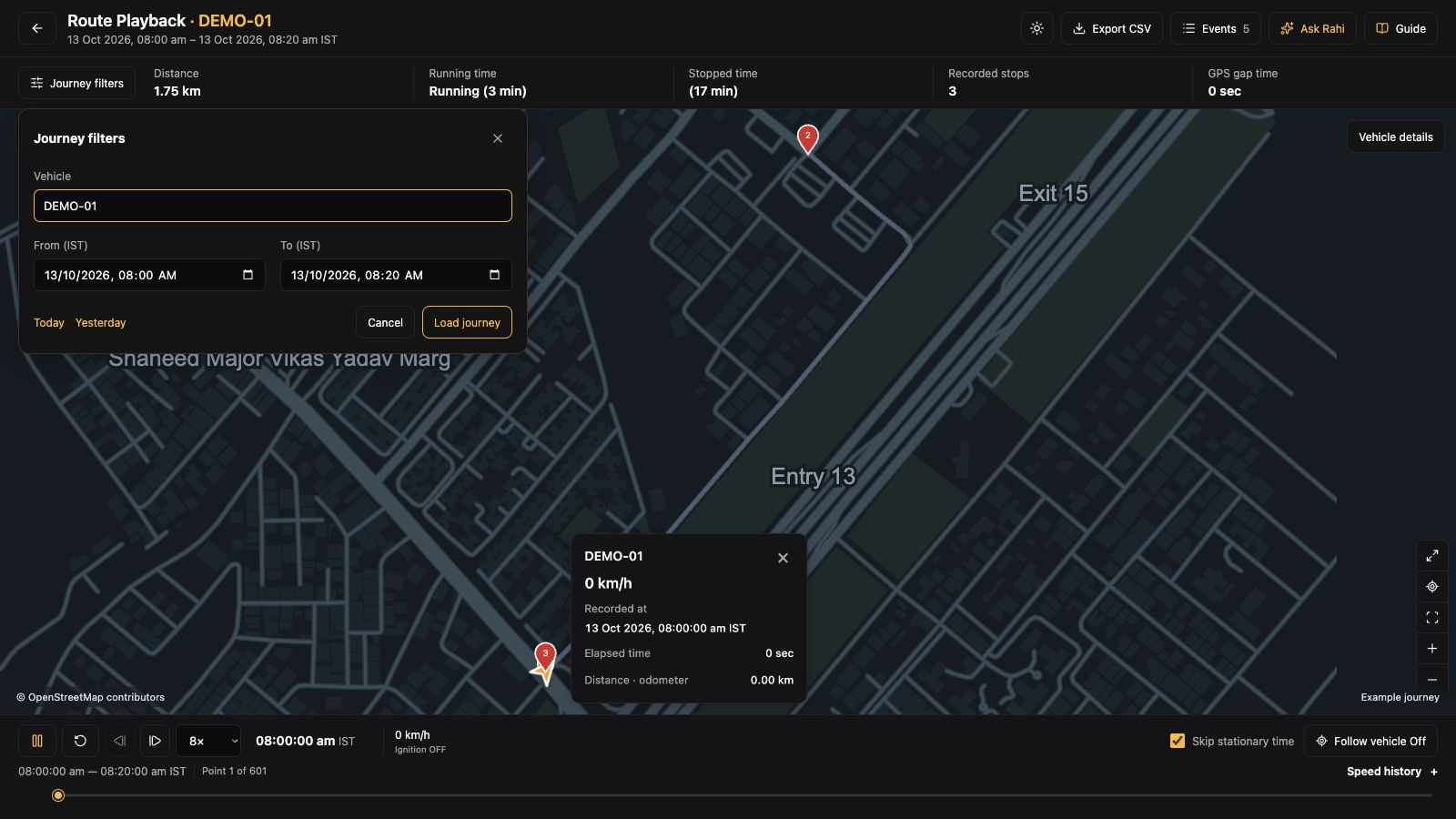
Select the vehicle and time period before reviewing the recorded journey.
Journeys & trips04
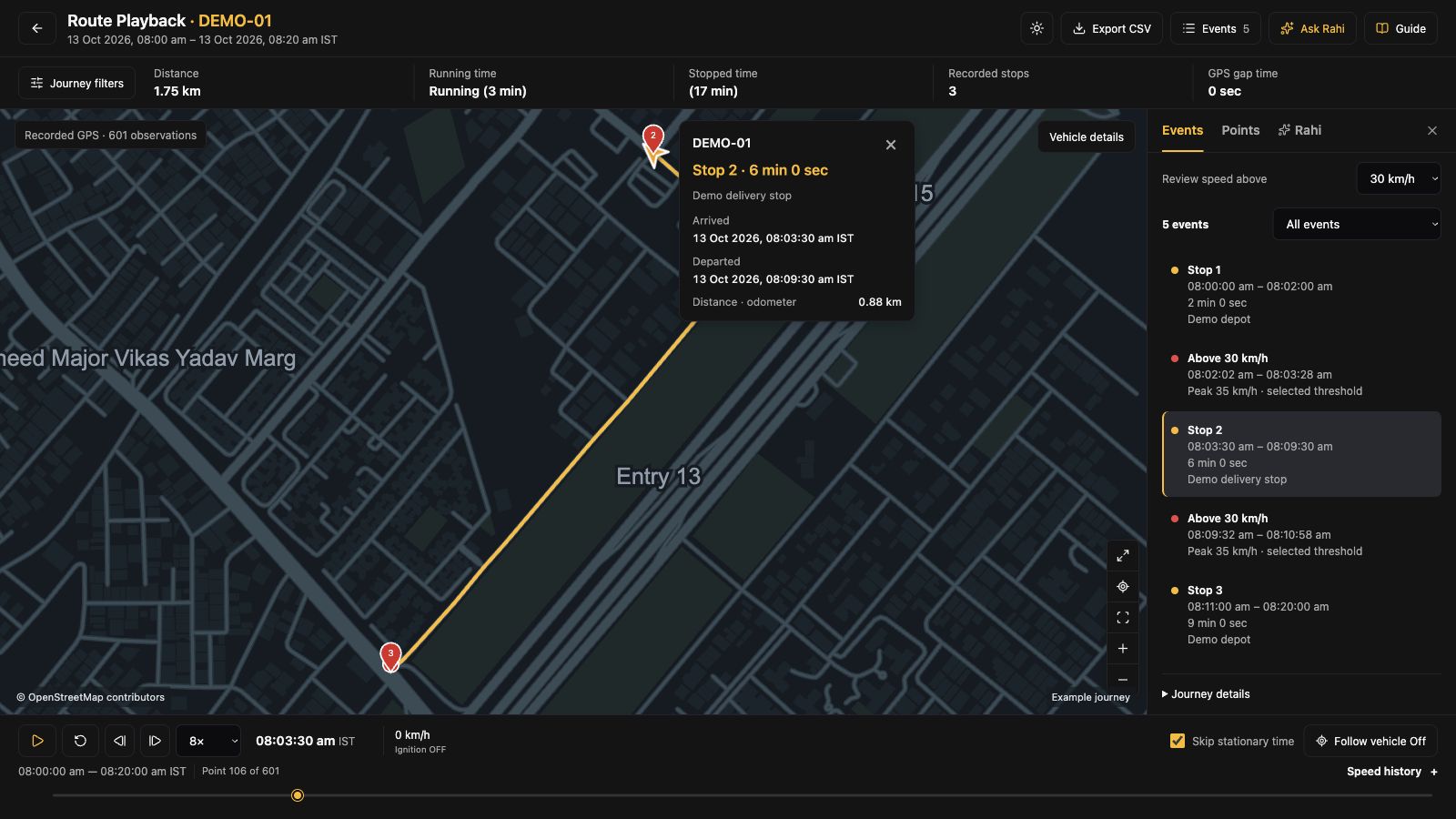
A trip ran late. Find where the time went.
Choose the vehicle and trip period, then review recorded movement and stops. Compare long stops with the delivery plan and ask dispatch or the driver what caused the delay.
What your team can do next
Review recorded movement and stops to support a clearer operational follow-up.
What the review gives you
A clearer picture of a journey when your team needs to understand what happened.
Give dispatch and fleet managers the same records to work from.
Review vehicle status, recorded trips and activity reports in SafarTrak. When a question comes in, start with the same vehicle and time period instead of comparing different accounts of the day.
Connect the right software workflow with the vehicle interfaces, devices and sensors your fleet supports.
Vehicle information
Review available vehicle records before arranging an inspection.
Vehicle maintenance05
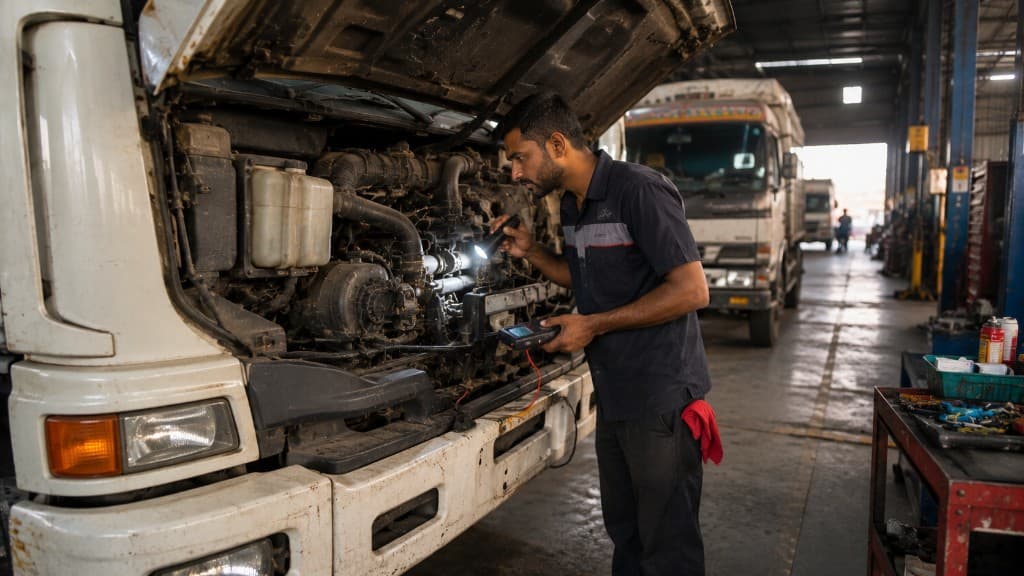
Check the vehicle records before booking an inspection.
Open the vehicle’s records and any diagnostic fields its device can report. Share the relevant readings with maintenance when arranging an inspection; the software does not replace a technician’s diagnosis.
What your team can do next
Review available signals and records before planning an inspection.
What the review gives you
Connected vehicle context to support investigation and maintenance planning.
Connect supported condition readings with the journey.
Cold chain06
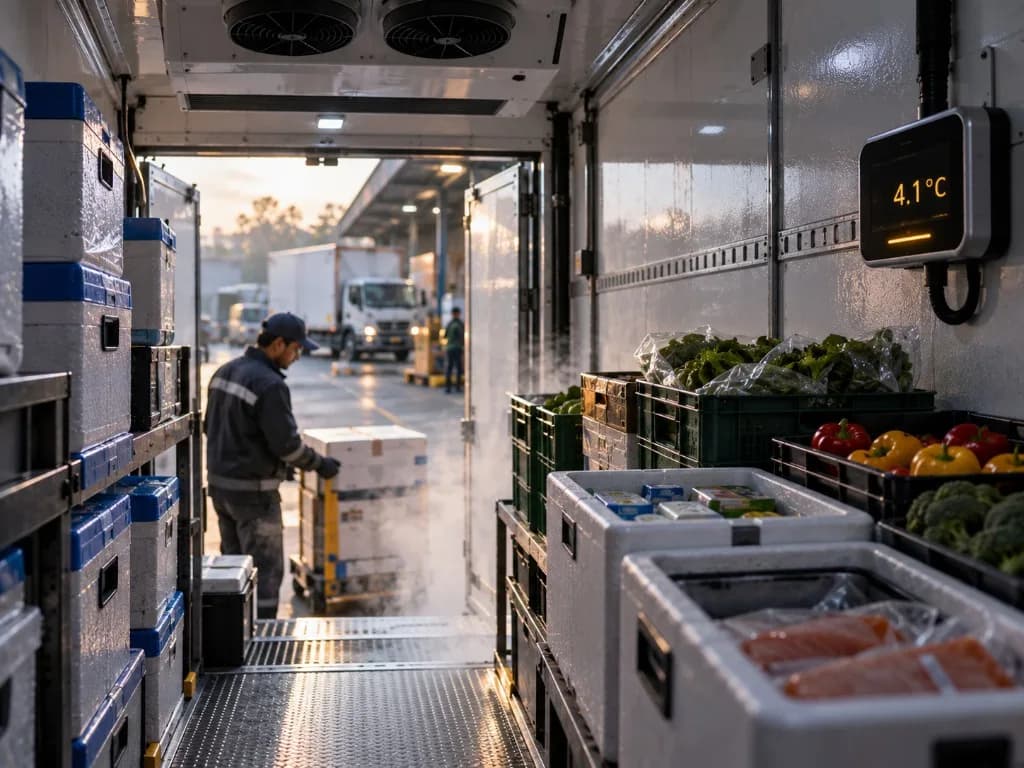
Review a temperature change against the trip.
For vehicles with compatible temperature sensors, check the reading and timestamp against the journey. Discuss the affected period with your team and follow your cargo procedures. Confirm sensor support and reporting before rollout.
What your team can do next
Connect supported sensor readings with the journey and your review process.
What the review gives you
A connected way to investigate trip activity and available condition data.
Check which readings are available for each vehicle type.
EV & mixed fleets07
Review the EVs and combustion vehicles in your fleet.
Review locations and journeys across supported vehicles. For EV battery or diagnostic readings, check the exact make, model and device interface; the same fields may not be available across the fleet.
What your team can do next
Start with shared visibility, then confirm the signals available for each vehicle.
What the review gives you
A common starting point for fleet reviews, with vehicle-specific data where supported.
Give operational reviews a more informed starting point.
Insights & AI08
Choose the fleet pattern worth investigating.
Compare fleet reports for a chosen period and pick a change to investigate. To evaluate AI, ask a specific question in a demo and check which data and supported workflow the answer uses.
What your team can do next
Use reports to focus the investigation and evaluate supported AI workflows in a demo.
What the review gives you
Useful context for operational reviews and a practical way to evaluate fleet intelligence.
3Confirm supported AI workflows in a platform demo
Rahi is your website assistant for product, device and demo questions. Fleet AI capabilities and access requirements should be confirmed for your deployment.
Bring one operational question and a representative vehicle group. Review the software, confirm required readings and agree how to evaluate the workflow before a wider rollout.